Dhruva · Study timer
Dhruva: User Guide
Everything you need to study with Dhruva, step by step.
- Getting started
- Your exam countdown
- Studying with the timer
- Background sounds
- Themes and your own photo
- Your progress
- Home-screen widgets
- Sharing your day
- Settings
- Help and questions
- If something is not right
- For parents and teachers
Getting started
- Open Dhruva and choose the year you were born. Dhruva is made for students aged 13 and older; it keeps only whether you are 13 or older, never the year.
- A short walkthrough of five pages shows how the app works. Tap Next, or Skip if you would like to begin straight away. You can see it again any time from Settings › Show the walkthrough again.
- When Dhruva asks to send notifications, please allow it, so it can tell you when a study block or break ends.
There is no account and no sign-up. Everything you do in Dhruva stays on your phone.
Your exam countdown
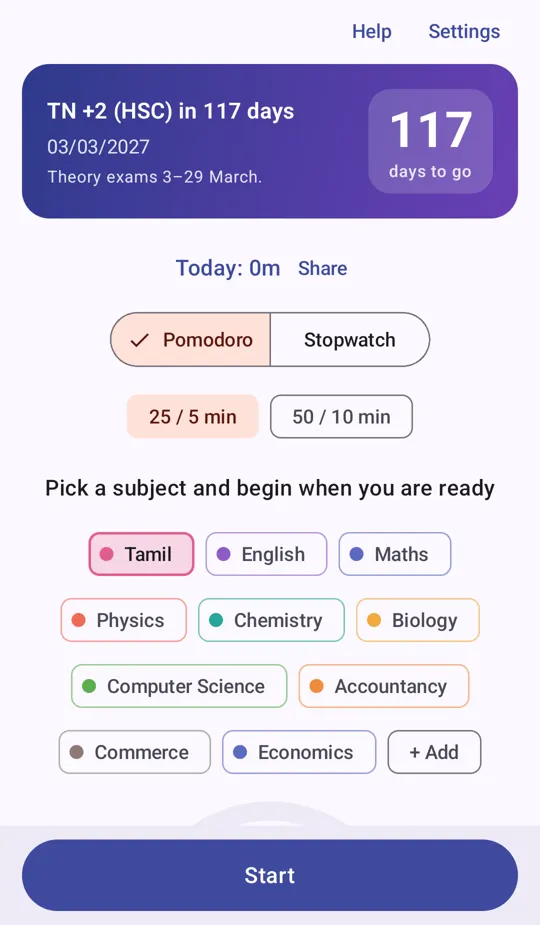
- Tap the card at the top: Which exam are you preparing for?
- Choose your exam: TN +2, TN SSLC, CBSE Class 10 or 12, JEE Main, NEET UG or CUET UG. Or choose My own exam, type its name and pick the date.
- Dhruva offers that exam's subjects. Tap Use these to switch your subject list, or Keep mine. Subjects you have already studied keep their history.
The card then shows, for example, "TN +2 (HSC) in 118 days". If it says date not confirmed yet, the board or exam agency has not announced the final date; we update it when the official notice is out, and the app picks it up by itself the next day.
Studying with the timer
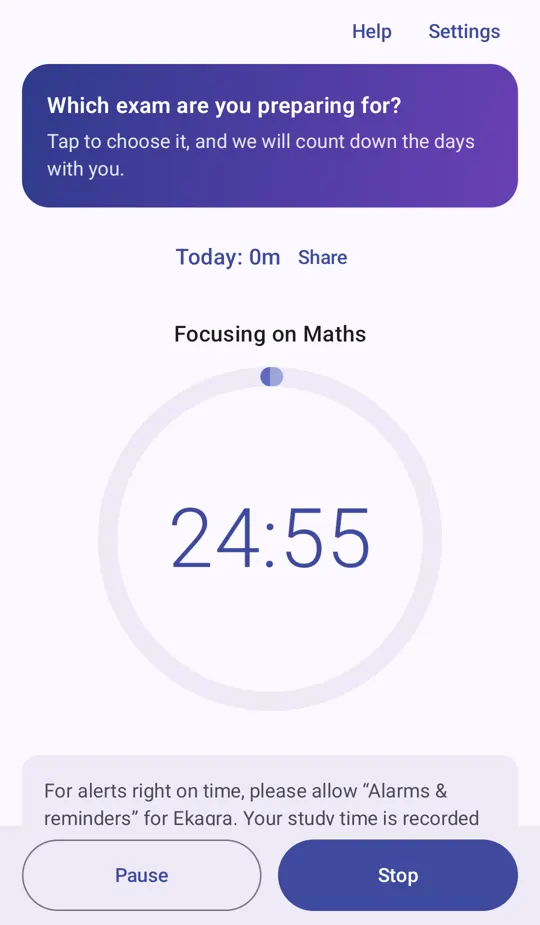
- Choose Pomodoro or Stopwatch.
- Pomodoro: a focus block of 25 minutes then a 5 minute break, or 50 then 10. It suits most revision.
- Stopwatch: counts up until you press Stop. It suits a long test paper.
- Tap the subject you are studying. Each subject has its own colour, which you will see on its chip, in today's list and on your study card. To add one, tap + Add.
- Press Start at the bottom of the screen. The ring around the time fills up as the session goes on, in the subject's colour (teal during a break). Pause, Resume and Stop are in the same place at the bottom, and also in the notification.
- Put the phone away. Locking it, closing the app or even restarting the phone does not lose or add minutes: Dhruva remembers when you started.
- When a focus block ends, a gentle alert suggests a break; when the break ends, another says you can start again.
Sessions shorter than one minute are not saved. If a Stopwatch is left running, it stops at 3 hours and asks whether you would like to keep that session.
Background sounds
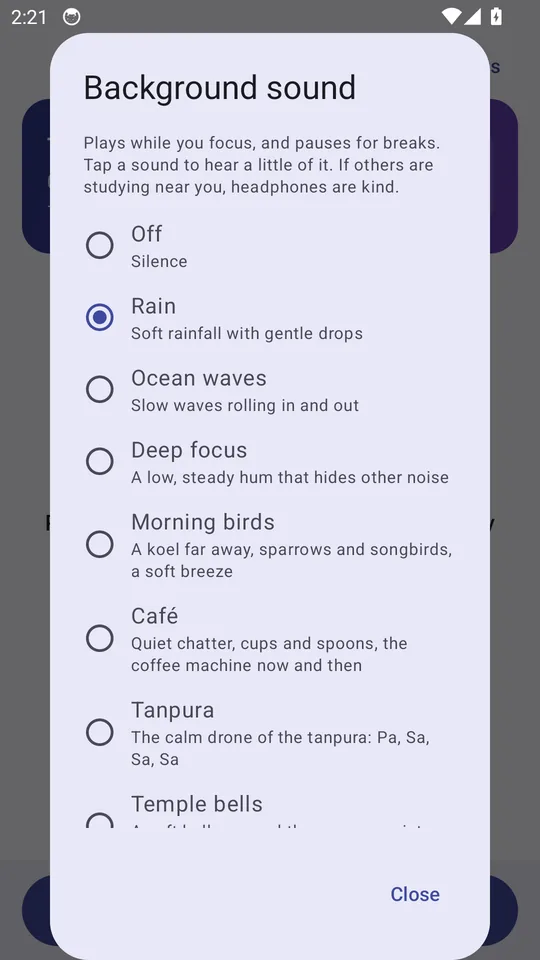
Some people focus better with a gentle sound in the background. Tap ♪ Sound: Off above the timer to choose one:
- Rain, Ocean waves and Deep focus (a low, steady hum that hides other noise).
- Morning birds: a koel far away, sparrows and songbirds, a soft breeze.
- Café: quiet chatter, cups and spoons, the coffee machine now and then.
- Fireplace: a crackling wood fire, with a soft roar, little crackles and the odd pop.
- Tanpura, Temple bells and Clock ticking.
- Tap a sound to hear a few seconds of it, and set the Volume with the slider. Tap Close when you have chosen.
- Press Start. The sound fades in while you focus, pauses for breaks, and stops when you pause or stop the timer. It keeps playing with the screen off.
- While it plays, a quiet notification has a Stop sound button. A phone call or a video quietly takes over the sound, and it returns afterwards.
Every sound is made on your phone, so nothing is downloaded and it works without internet. If others are studying near you, headphones are kind.
Themes and your own photo
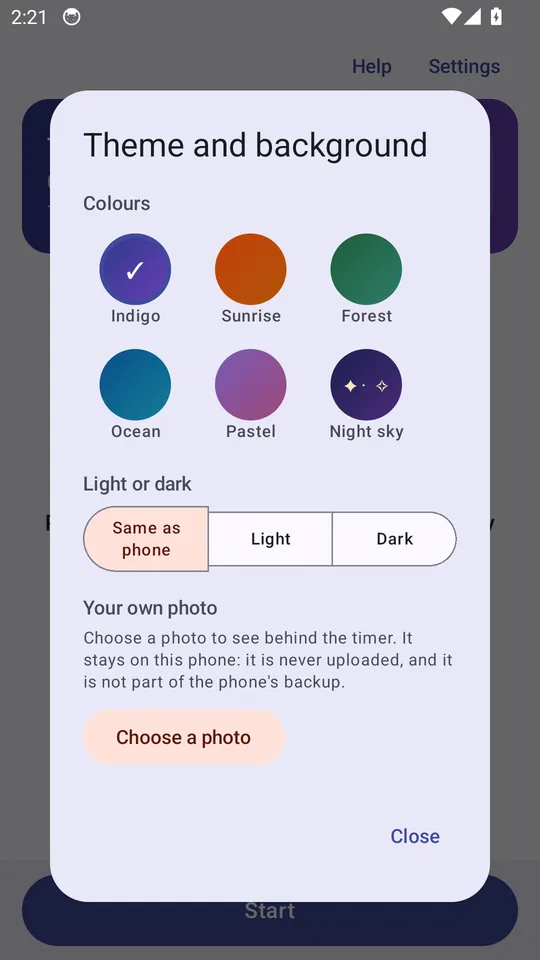
Open Settings › Theme and background to make Dhruva look the way you like. Changes show at once behind the window.
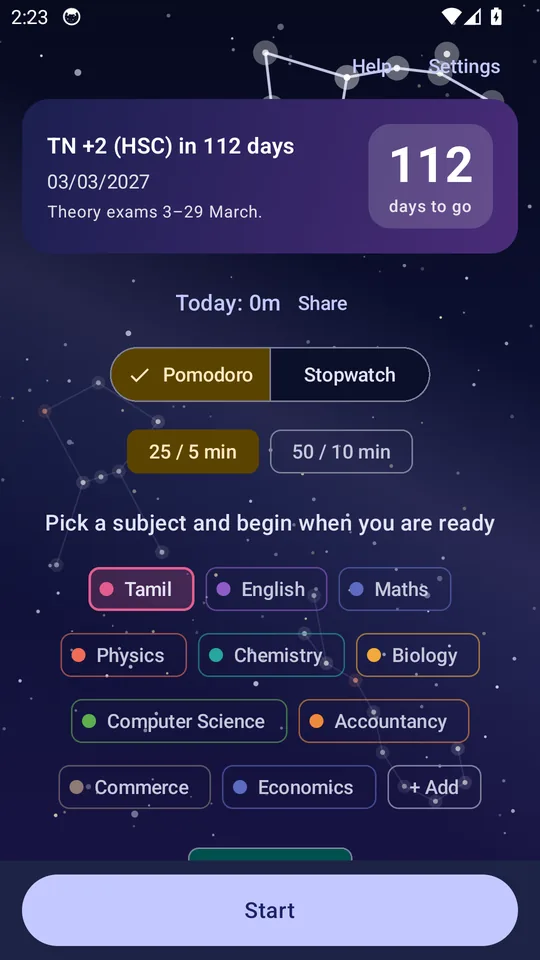
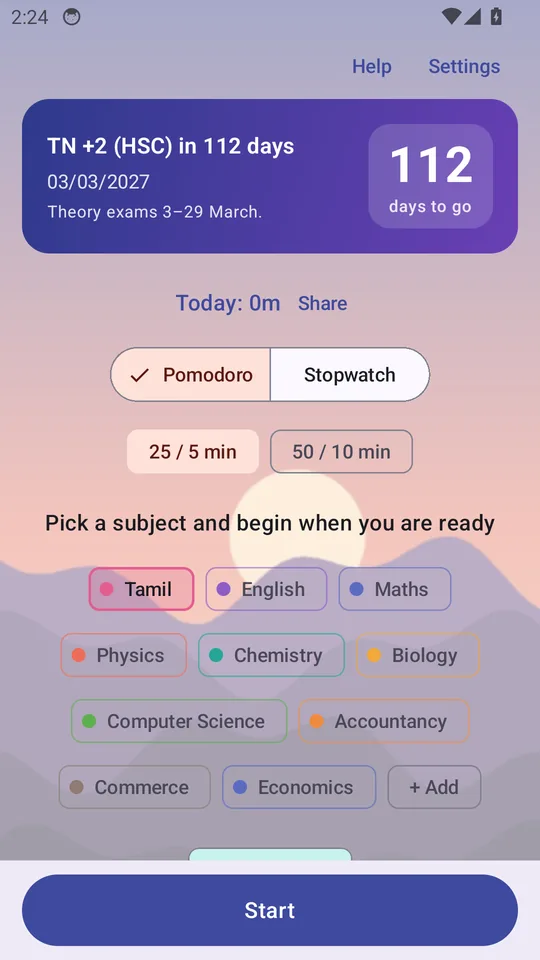
- Colours: Indigo, Sunrise, Forest, Ocean, Pastel or Night sky. Each one changes the countdown card, buttons and background together.
- Light or dark: Same as phone, Light or Dark. Night sky is always dark.
- Night sky shows a starry sky behind the screen with four constellations: Saptarishi, Cassiopeia, Orion (Mrigashira) and Scorpius (Vrischika). Every ten seconds one is traced star by star and named; the sky turns very slowly, and now and then a shooting star crosses. If your phone's animations are turned off, the sky stays still.
- Your own photo: tap Choose a photo and pick one from your gallery. Use the slider to soften it so the words stay easy to read. Change photo or Remove photo are on the same screen.
Your photo stays on this phone. Dhruva keeps its own copy, never uploads it, and leaves it out of the phone's backup. Delete all my data removes it too.
Your progress
- Today: your total for the day is at the top, and every session is listed under Today's sessions. To remove one, press and hold it, then tap Delete.
- This week: your hours from Monday to Sunday against your weekly goal (10 hours unless you change it). A row of dots shows each day: teal with a tick for a day that counts, pale for a little study, and today is ringed.
- Streak: each day with 15 minutes or more of study adds to your streak. If you miss a day, one of your two rest days for the month covers it, so one missed day does not undo your work.
Home-screen widgets
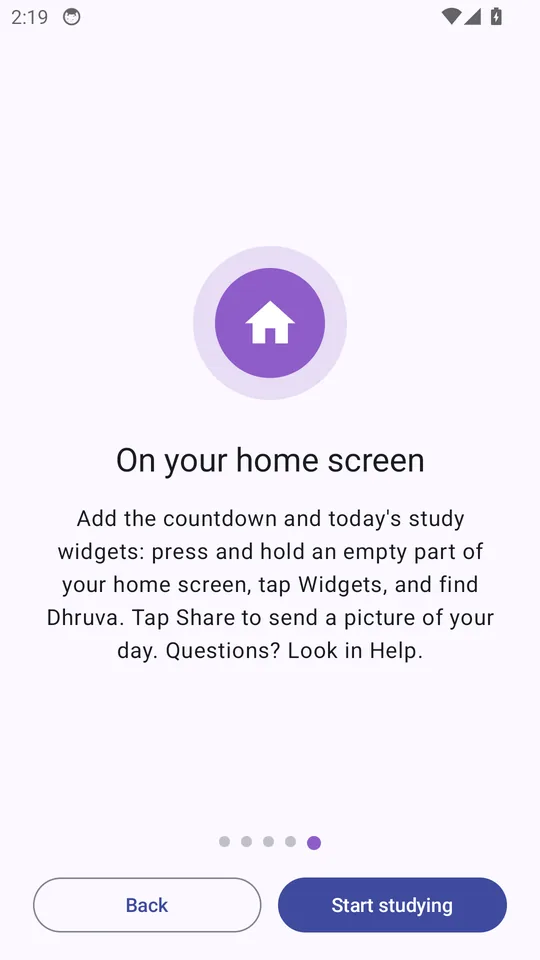
- Press and hold an empty part of your phone's home screen.
- Tap Widgets and scroll to Dhruva.
- Drag Exam countdown or Today's study onto the screen.
The countdown widget shows the days left. Today's study shows your total and a button to start your last subject, or to stop a session that is running. Widgets show when a block ends rather than a ticking clock, which saves battery.
Sharing your day
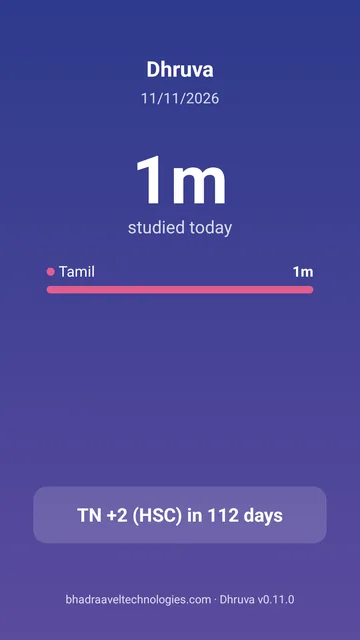
Tap Share next to today's total. You will see a picture of your day: total time, your subjects and your exam countdown. It has no name and no photo.
- Share picture sends it to WhatsApp, Instagram, Snapchat or any app.
- Open WhatsApp sends the summary as text to a number you type.
- Save picture keeps it in your phone's Pictures › Dhruva folder.
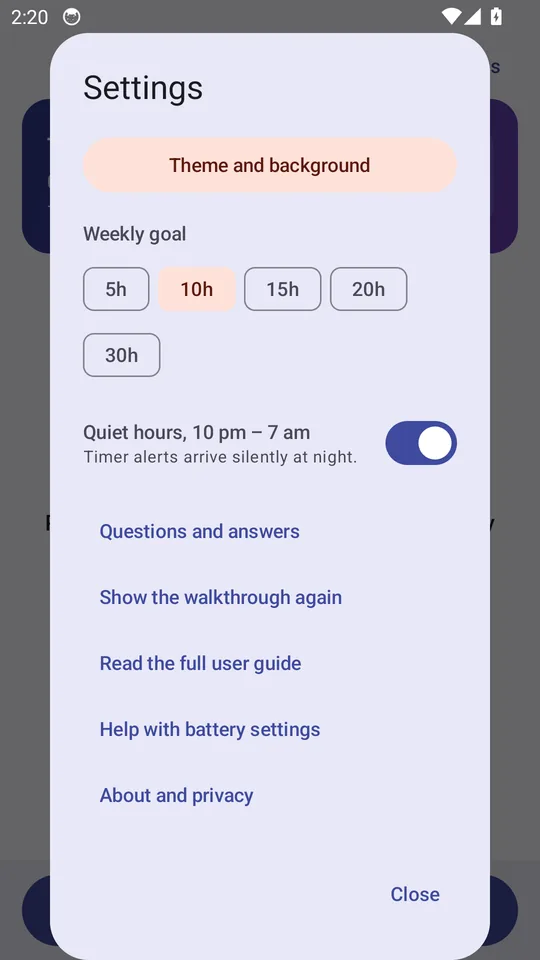
Settings
Tap Settings at the top of the main screen for:
- Theme and background: colours, light or dark, the Night sky, or your own photo (see Themes).
- Weekly goal: 5, 10, 15, 20 or 30 hours.
- Quiet hours (10 pm to 7 am): alerts at night arrive silently. On unless you turn it off.
- Questions and answers and Show the walkthrough again.
- Help with battery settings: steps for your phone's brand so alerts arrive on time.
- About and privacy, and Delete all my data, which removes everything from the phone after one question.
Help and questions
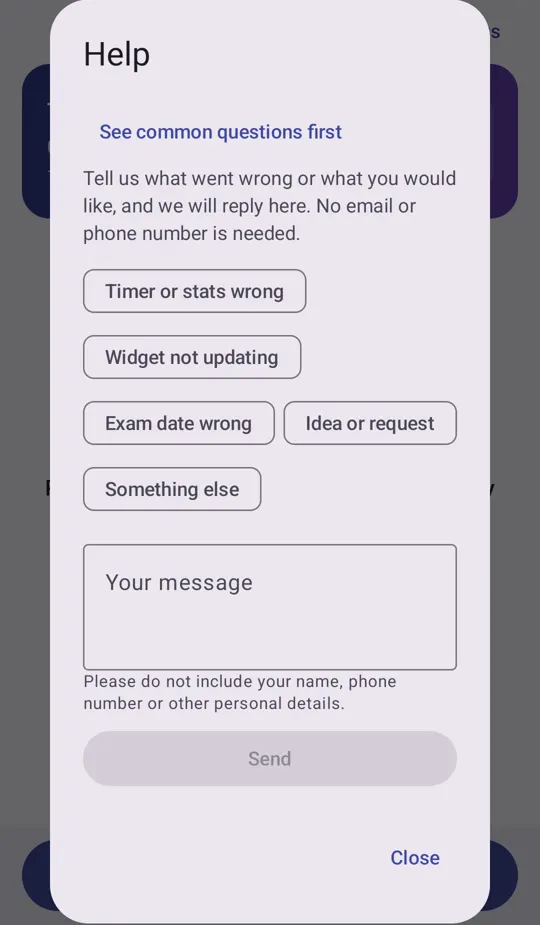
Tap Help at the top of the main screen. First look at See common questions first: most answers are there. To write to us, choose a topic, type your message and tap Send. You will get a reference such as EKA-1042, and our reply appears in the same place. No email or phone number is needed; please do not include your name or other personal details.
If something is not right
- The alert came late. Your phone may be delaying alerts to save battery. Open Settings › Help with battery settings and follow the steps for your phone, and allow Alarms and reminders if Dhruva asks. Your study time is recorded correctly either way.
- A widget is not updating. Widgets update when a session starts or ends and just after midnight. If one looks stuck, open Dhruva once; if it continues, please check the battery steps above.
- The time looks wrong. Check that your phone's date and time are set automatically. If a session is wrong, delete it from Today's sessions.
- An exam date is wrong. Please tell us through Help › Exam date wrong, and we will check it against the official notice.
- New phone. Android usually restores Dhruva's data from your Google account when you set up a new phone with the same account.
For parents and teachers
Dhruva is a simple focus timer for students aged 13 and older. It has no ads, no chat, no account and no contact with strangers, and it does not track or profile students. Study data stays on the student's phone; the only thing that goes out is an anonymous daily count (a rough city and the exam chosen, never who the student is), which can be turned off in Settings › Count me in. If you have a question or a concern, write to support@bhadraaveltechnologies.com. Read the privacy policy.
Dhruva: பயனர் வழிகாட்டி (தமிழ்)
இது ஆங்கிலப் பதிப்பின் மொழிபெயர்ப்பு. ஏதேனும் முரண்பாடு இருந்தால் ஆங்கிலப் பதிப்பே செல்லுபடியாகும். படங்கள் ஆங்கிலச் செயலியிலிருந்து எடுக்கப்பட்டவை.
தொடங்குதல்
- Dhruva-வைத் திறந்து நீங்கள் பிறந்த ஆண்டைத் தேர்ந்தெடுங்கள். 13 வயதும் அதற்கு மேற்பட்டவர்களுக்கான செயலி இது; 13 அல்லது அதற்கு மேல் என்பதை மட்டுமே வைத்திருக்கும், ஆண்டை அல்ல.
- ஐந்து பக்கச் சிறு வழிகாட்டி செயலி எப்படி இயங்குகிறது என்று காட்டும். அடுத்து தொடுங்கள், அல்லது உடனே தொடங்க தவிர். அமைப்புகள் › வழிகாட்டியை மீண்டும் காட்டு என்பதில் எப்போதும் மீண்டும் பார்க்கலாம்.
- அறிவிப்புகளை அனுப்ப Dhruva அனுமதி கேட்டால், தயவுசெய்து அனுமதியுங்கள்; படிப்பு அல்லது ஓய்வு முடியும்போது அது உங்களுக்குத் தெரிவிக்கும்.
கணக்கு இல்லை, பதிவு இல்லை. Dhruva-வில் நீங்கள் செய்வது அனைத்தும் உங்கள் தொலைபேசியிலேயே இருக்கும்.
தேர்வுக் கவுண்ட்டவுன்
- மேலே உள்ள அட்டையைத் தொடுங்கள்: நீங்கள் எந்தத் தேர்வுக்குத் தயாராகிறீர்கள்?
- TN +2, TN SSLC, CBSE 10 அல்லது 12, JEE Main, NEET UG, CUET UG ஆகியவற்றில் ஒன்றைத் தேர்ந்தெடுங்கள்; அல்லது என் சொந்தத் தேர்வு என்பதைத் தேர்ந்து, பெயரையும் தேதியையும் கொடுங்கள்.
- அந்தத் தேர்வின் பாடங்களை Dhruva தரும். பாடப் பட்டியலை மாற்ற இவற்றைப் பயன்படுத்து, அல்லது என்னுடையதை வைத்துக்கொள். ஏற்கனவே படித்த பாடங்களின் வரலாறு அப்படியே இருக்கும்.
தேதி இன்னும் உறுதியாகவில்லை என்று இருந்தால், இறுதித் தேதி இன்னும் அறிவிக்கப்படவில்லை; அதிகாரப்பூர்வ அறிவிப்பு வந்ததும் புதுப்பிப்போம், செயலி மறுநாள் தானாகப் பெற்றுக்கொள்ளும்.
டைமருடன் படித்தல்
- பொமோடோரோ (25 நிமிடக் கவனம், 5 நிமிட ஓய்வு; அல்லது 50 / 10) அல்லது ஸ்டாப்வாட்ச் (நிறுத்தும் வரை எண்ணும்) தேர்ந்தெடுங்கள்.
- நீங்கள் படிக்கும் பாடத்தைத் தொடுங்கள். ஒவ்வொரு பாடத்திற்கும் தனி நிறம் உண்டு; அதன் சிப்பிலும், இன்றைய பட்டியலிலும், படிப்பு அட்டையிலும் அதைக் காணலாம். புதிய பாடத்திற்கு + சேர்.
- திரையின் கீழே உள்ள தொடங்கு அழுத்துங்கள். நேரத்தைச் சுற்றியுள்ள வளையம், அமர்வு செல்லச் செல்ல பாடத்தின் நிறத்தில் நிரம்பும் (ஓய்வின்போது பச்சை-நீலம்). இடைநிறுத்து, தொடர்க, நிறுத்து ஆகியவை அதே இடத்தில் கீழேயும், அறிவிப்பிலும் உள்ளன.
- தொலைபேசியை ஒதுக்கி வையுங்கள். பூட்டினாலும், செயலியை மூடினாலும், மறுதொடக்கம் செய்தாலும் நிமிடங்கள் குறையாது, கூடாது.
ஒரு நிமிடத்திற்குக் குறைவான அமர்வுகள் சேமிக்கப்படாது. ஸ்டாப்வாட்ச் ஓடிக்கொண்டே இருந்தால், 3 மணி நேரத்தில் நின்று, அந்த அமர்வை வைத்துக்கொள்ளவா என்று கேட்கும்.
பின்னணி ஒலி
டைமருக்கு மேலே உள்ள ♪ ஒலி: இல்லை என்பதைத் தொட்டு ஒரு ஒலியைத் தேர்ந்தெடுங்கள்: மழை, கடல் அலைகள், ஆழ்ந்த கவனம், காலைப் பறவைகள், காஃபி கடை, கணப்பு நெருப்பு, தம்புரா, கோயில் மணிகள், கடிகார டிக் டிக். ஒரு ஒலியைத் தொட்டால் சில வினாடிகள் கேட்கலாம்; ஒலியளவு ஸ்லைடரில் அளவை அமைக்கலாம்.
தொடங்கு அழுத்தியதும், நீங்கள் கவனம் செலுத்தும்போது ஒலி மெதுவாகத் தொடங்கும்; ஓய்வின்போதும், இடைநிறுத்தும்போதும், நிறுத்தும்போதும் நிற்கும். திரை அணைந்திருந்தாலும் ஒலிக்கும். ஒலிக்கும்போது வரும் அறிவிப்பில் ஒலியை நிறுத்து பொத்தான் உண்டு.
ஒவ்வொரு ஒலியும் உங்கள் தொலைபேசியிலேயே உருவாகிறது; எதுவும் பதிவிறக்கப்படுவதில்லை, இணையம் தேவையில்லை. அருகில் மற்றவர்கள் படித்தால், ஹெட்ஃபோன் பயன்படுத்துவது அன்பானது.
தீம் மற்றும் உங்கள் சொந்தப் படம்
அமைப்புகள் › தீம் மற்றும் பின்னணி என்பதைத் திறங்கள்.
- வண்ணங்கள்: கருநீலம், சூரிய உதயம், காடு, கடல், மென்னிறம் அல்லது இரவு வானம்.
- வெளிச்சம் அல்லது இருள்: போனில் உள்ளபடி, வெளிச்சம் அல்லது இருள். இரவு வானம் எப்போதும் இருளாகவே இருக்கும்.
- இரவு வானம்: சப்தரிஷி மண்டலம், காசியோப்பியா, மிருகசீரிடம், விருச்சிகம் ஆகிய நட்சத்திரக் கூட்டங்களுடன் கூடிய வானம். ஒவ்வொரு பத்து வினாடிக்கும் ஒன்று நட்சத்திரம் நட்சத்திரமாக வரையப்பட்டு, அதன் பெயர் தோன்றும்; வானம் மெதுவாகச் சுழலும், அவ்வப்போது ஒரு எரிநட்சத்திரம் கடக்கும்.
- உங்கள் சொந்தப் படம்: படத்தைத் தேர்ந்தெடுங்கள் என்பதைத் தொட்டு உங்கள் கேலரியிலிருந்து ஒன்றைத் தேர்ந்தெடுங்கள். எழுத்துகள் எளிதாகப் படிக்கும்படி ஸ்லைடரால் படத்தை மென்மையாக்கலாம்; அதே திரையில் மாற்றவோ நீக்கவோ செய்யலாம்.
உங்கள் படம் இந்த தொலைபேசியிலேயே இருக்கும்: எங்கும் பதிவேற்றப்படாது, காப்புப்பிரதியிலும் சேராது. என் தரவு அனைத்தையும் நீக்கு அதையும் நீக்கிவிடும்.
உங்கள் முன்னேற்றம்
- இன்று: அன்றைய மொத்த நேரம் மேலே; ஒவ்வொரு அமர்வும் இன்றைய அமர்வுகளில். நீக்க, அமர்வை அழுத்திப் பிடித்து நீக்கு தொடுங்கள்.
- இந்த வாரம்: திங்கள் முதல் ஞாயிறு வரையிலான மணி நேரங்கள், உங்கள் வார இலக்குடன் (மாற்றாவிட்டால் 10 மணி நேரம்). ஒவ்வொரு நாளுக்கும் ஒரு புள்ளி: கணக்கில் சேரும் நாள் டிக் குறியுடன் பச்சை-நீலம், சிறிது படித்த நாள் வெளிர் நிறம், இன்று வட்டமிடப்பட்டிருக்கும்.
- தொடர்ச்சி: 15 நிமிடங்கள் அல்லது அதற்கு மேல் படிக்கும் ஒவ்வொரு நாளும் சேரும். ஒரு நாள் தவறினால், மாதத்தின் இரண்டு ஓய்வு நாட்களில் ஒன்று அதை ஈடுசெய்யும்.
முகப்புத் திரை விட்ஜெட்டுகள்
- முகப்புத் திரையின் காலியான இடத்தை அழுத்திப் பிடியுங்கள்.
- Widgets தொட்டு Dhruva வரை நகர்த்துங்கள்.
- தேர்வுக் கவுண்ட்டவுன் அல்லது இன்றைய படிப்பு விட்ஜெட்டைத் திரைக்கு இழுங்கள்.
உங்கள் நாளைப் பகிர்தல்
இன்றைய மொத்த நேரத்தின் அருகில் பகிர் தொடுங்கள். பெயரோ புகைப்படமோ இல்லாத உங்கள் நாளின் படம் தோன்றும். படத்தைப் பகிர் (எந்தச் செயலிக்கும்), WhatsApp-ஐத் திற (ஒரு எண்ணுக்கு உரையாக), அல்லது படத்தைச் சேமி.
அமைப்புகள்
தீம் மற்றும் பின்னணி, வார இலக்கு, அமைதி நேரம் (இரவு 10 – காலை 7, அறிவிப்புகள் ஒலியின்றி), கேள்விகளும் பதில்களும், வழிகாட்டி, பேட்டரி அமைப்புகளுக்கு உதவி, பற்றி மற்றும் தனியுரிமை, என் தரவு அனைத்தையும் நீக்கு.
உதவி
மேலே உதவி தொடுங்கள். முதலில் பொதுவான கேள்விகளைப் பாருங்கள். எழுத, ஒரு தலைப்பைத் தேர்ந்து செய்தியை எழுதி அனுப்பு. EKA-1042 போன்ற குறிப்பு எண் கிடைக்கும்; எங்கள் பதில் அங்கேயே தோன்றும். மின்னஞ்சலோ எண்ணோ தேவையில்லை; தயவுசெய்து உங்கள் பெயர் போன்ற விவரங்களைச் சேர்க்க வேண்டாம்.
ஏதாவது சரியில்லை என்றால்
- அறிவிப்பு தாமதமாக வந்தது: அமைப்புகள் › பேட்டரி அமைப்புகளுக்கு உதவி என்பதில் உங்கள் தொலைபேசிக்கான படிகளைப் பின்பற்றுங்கள். படிப்பு நேரம் எப்படியும் சரியாகப் பதிவாகும்.
- விட்ஜெட் புதுப்பிக்கவில்லை: Dhruva-வை ஒருமுறை திறந்து பாருங்கள்; தொடர்ந்தால் பேட்டரி படிகளைச் சரிபாருங்கள்.
- நேரம் தவறாகத் தெரிகிறது: தொலைபேசியின் தேதி, நேரம் தானாக அமைக்கப்பட்டுள்ளதா எனப் பாருங்கள்; தவறான அமர்வை நீக்கலாம்.
- தேர்வுத் தேதி தவறு: உதவி › தேர்வுத் தேதி தவறு மூலம் சொல்லுங்கள்.
- புதிய தொலைபேசி: அதே Google கணக்குடன் அமைத்தால், Android பொதுவாக Dhruva தரவை மீட்டெடுக்கும்.
பெற்றோருக்கும் ஆசிரியர்களுக்கும்
Dhruva, 13 வயதும் அதற்கு மேற்பட்ட மாணவர்களுக்கான எளிய கவன டைமர். விளம்பரம், அரட்டை, கணக்கு, அந்நியர்களுடன் தொடர்பு எதுவும் இல்லை; மாணவர்களைக் கண்காணிப்பதோ சுயவிவரம் உருவாக்குவதோ இல்லை. கேள்விகளுக்கு support@bhadraaveltechnologies.com. தனியுரிமைக் கொள்கை.